YouTube’s Clip button
The good: Instant, free, built into YouTube.
The catch: Creates a shareable on-platform link only — no file, no vertical reframing, no posting to TikTok, Reels or Shorts.
The complete guide
YouTube’s Clip button only makes a link that stays on YouTube. A real clip is a vertical MP4 with captions you can post anywhere — and you can make one from a link or an upload in minutes, from your computer.
The short version
Before you start
It creates a 5–60 second snippet that lives on YouTube as a shareable link. Viewers watch it on YouTube, and it loops back to the full video.
No downloadable file. No vertical reframing. No captions. No way to post it to TikTok, Instagram Reels or YouTube Shorts as a native upload.
A vertical 1080 × 1920 MP4 cut from the source, reframed without stretching, with burned-in captions and a hook — a finished post, not a link.
Your options
The good: Instant, free, built into YouTube.
The catch: Creates a shareable on-platform link only — no file, no vertical reframing, no posting to TikTok, Reels or Shorts.
The good: Works with any video you can play.
The catch: Lower quality, manual trimming afterwards, no captions, and usually a policy grey area for videos you don’t own.
The good: Full control over every frame.
The catch: Slow to learn, slow to batch — finding the moments, reframing and captioning a week of clips by hand is a part-time job.
The good: Link or upload in, finished vertical clips out — moments found, framed, captioned and scheduled from one screen.
The catch: Built for repurposing your own content, not for frame-by-frame film editing.
Step by step
From a link or an upload to a finished vertical clip in five steps — you edit the words and the trim, not the pixels.
01
Paste a YouTube link you own or have permission to use, or upload your own file (MP4, MOV or WebM up to 800 MB, 30 seconds to 2 hours).
02
FKNStudio transcribes the audio, finds the strongest moments and suggests clips with exact start and end times, a title, a hook and a caption for each.
03
Trim by dragging along the transcript, choose the framing, fix caption wording, and set an opening hook title — all before anything renders.
04
The clip is cut from the source and rendered at 1080 × 1920 (9:16) with a blurred background fill, burned-in captions and your brand styling. Nothing is stretched.
05
Send the clip to TikTok, Instagram Reels and YouTube Shorts from the same screen, now or at a scheduled time. Each account publishes independently.
The craft
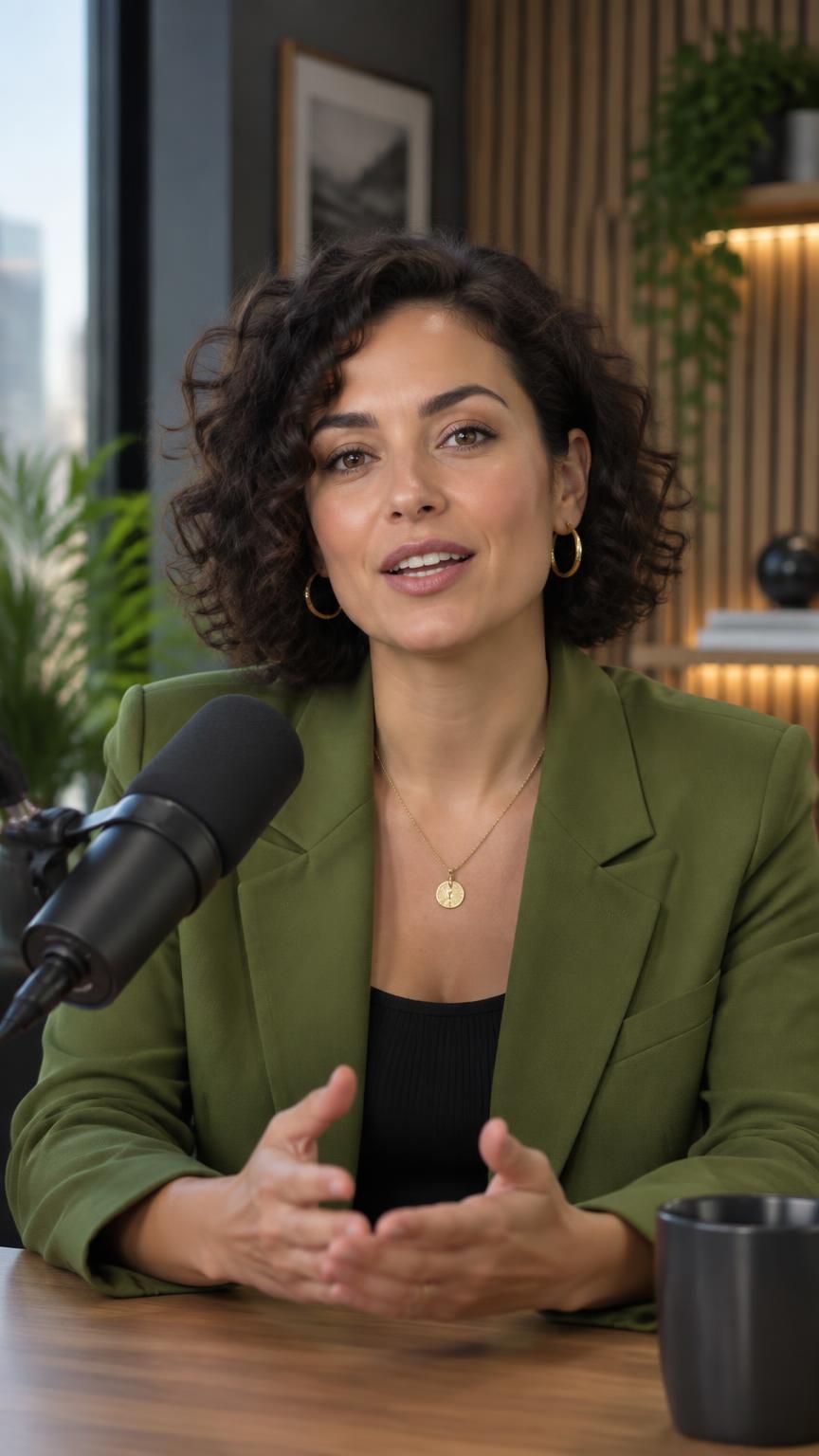
A short title overlay that names why the viewer should keep watching. FKNStudio suggests one from the clip’s content and shows it for the opening moments.
Most feeds autoplay muted. Burned-in, word-timed captions carry the message whether or not the sound is on.
Widescreen footage is centred over a blurred version of itself, so the vertical frame is full without distorting the speaker or cutting off faces.
Cut in mid-sentence and the clip feels broken. Trimming along the transcript keeps the beginning and end on natural sentence boundaries.
The best-performing clips make a single point completely. If a moment needs two ideas, it wants to be two clips.
Reference
One 9:16 render works as a TikTok, a YouTube Short and an Instagram Reel, so a single clip covers all three platforms.
FKNStudio export size
1080 × 1920 px (9:16), MP4
Framing
Original footage centred over a blurred background fill — no stretching
Captions
Burned in, word-timed from the transcript, styled to your brand
Opening hook
Optional title overlay for the first ~2 seconds, on by default for new clips
Ideal clip length
20–60 seconds — one complete thought, cut clean at both ends
Platform limits
Length and ratio limits change; check each platform’s help page for the current numbers
The system
A 20-minute video usually contains five to ten moments that each stand on their own. FKNStudio finds them in the transcript and builds a separate clip around each one — so a single recording becomes a week of scheduled posts across your connected accounts.
The same source also produces swipeable slideshows and narrated faceless videos — see the faceless channel ideas guide for what to do with them.
The repurposing math
Fixes
Never force widescreen footage to fill 9:16. Use a blurred background fill (FKNStudio’s default) so the original frame keeps its shape.
Auto-captions drift when the transcript is rough. Start from a real transcription and nudge the trim to sentence boundaries.
The opening is the whole game. Add a hook title overlay and make sure the first spoken line earns the next five seconds.
Clipping needs spoken dialogue to transcribe. Pick a source with clear speech — interviews, podcasts, talks and commentary all work well.
Each account posts independently by design. Open the queue, read the error on the failed post, and retry just that one.
Questions
Paste a link or upload a video, pick the moments, and post vertical clips to every connected account from one screen.